Practical guidance for the first setup and the everyday tasks that follow.
YOUR FIRST FEW MINUTES
Change one project. See your result.
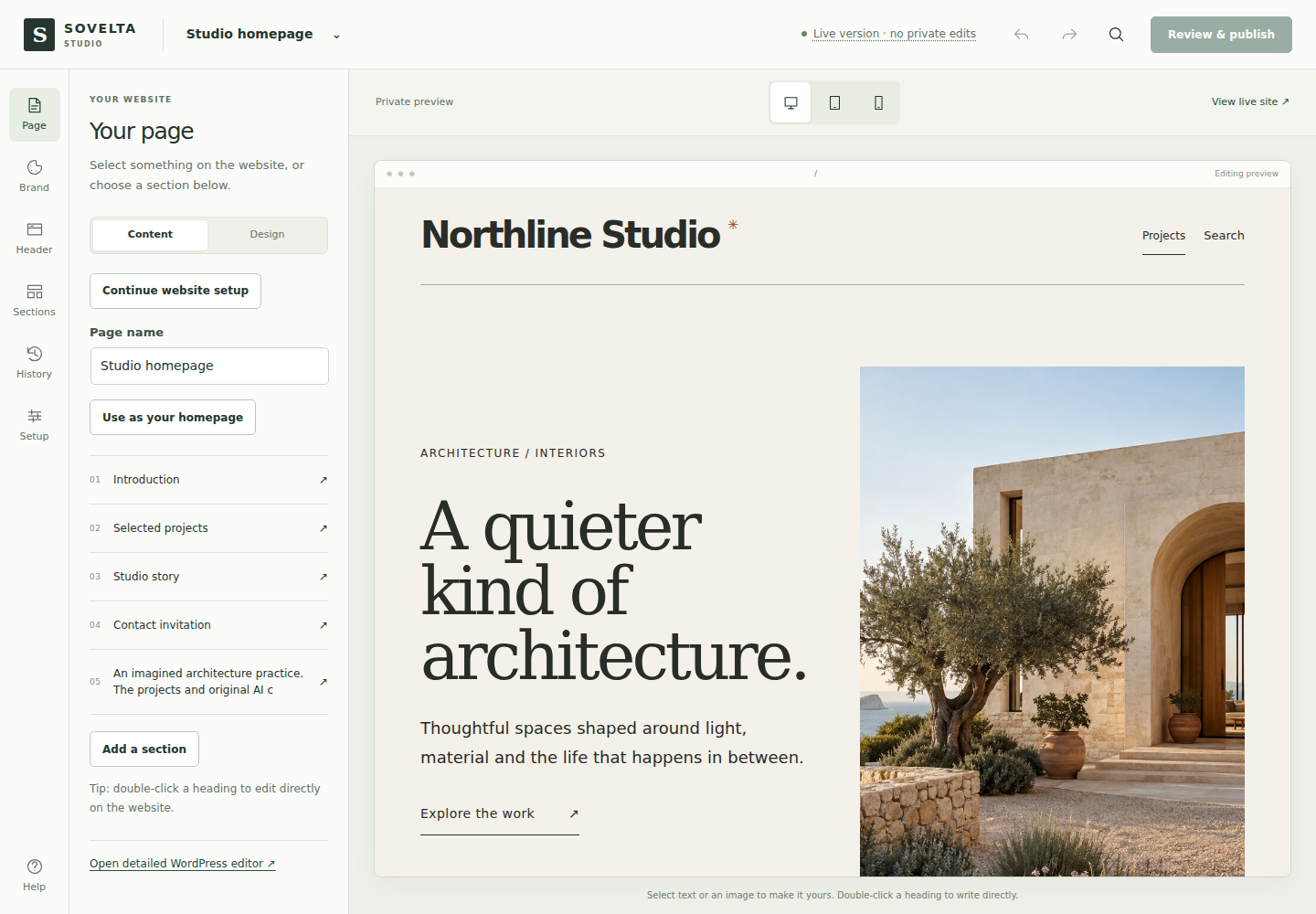
Open the editing demo. It opens on your actual practice website in the visual workspace. The page selector at the top also opens projects and other pages.
Make one change. Double-click a heading, or select text or a photograph and use the controls beside the website. Your draft saves privately.
Review, then publish. Choose Review & publish and select the page or appearance changes to apply. In a demo, this updates only your private practice website.
Try the design. Open Brand to preview colors, fonts or a starting style on the same page. Use History to compare drafts or preview a restore.
Content and Design: Content shows text, image details and project choices. Design shows the selected section’s layout and appearance controls. With nothing selected, choose a section from the list; Brand controls shared website colors and fonts. Switching modes does not change or publish your work.
Know what is live: the save status tells you whether this page and the shared design match the live website, are saved privately, or still need saving. Select the status for a separate explanation of each. A private draft is not visible to website visitors.
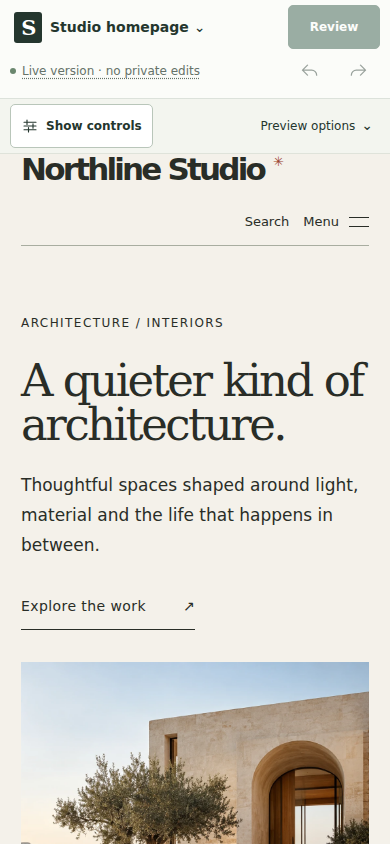
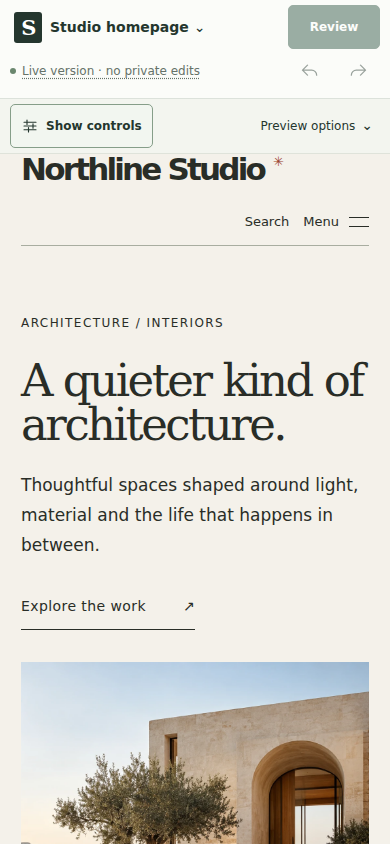
On your phone: Show controls opens the editing tools; Show preview gives the space back to your website. Preview options holds device sizes and the live-site link. Review opens the same publishing review as the desktop button.
You can explore at your own pace. Standard WordPress tools remain available. Continue website setup resumes the five-step guide using your saved work.
Install the Sovelta theme under Appearance → Themes, then the Sovelta Core plugin under Plugins. Both are Free. Activate them and open Sovelta → Start here to choose a homepage and resume the setup guide. Creating a draft, publishing it and assigning it as your homepage are separate choices. Install the optional Pro plugin after Core, keeping both Free components active.
Choose your design. Explore a complete starter at desktop and mobile widths. Add its pages as private drafts, or review a full activation. Existing content remains available.
Add your identity. Enter your studio name and description, then save and review them. The guide reads your saved private design, so you can prepare before publishing.
Add your work. Create or select your own project with a cover and story. Imported fictional examples do not count as your own completed work.
Prepare contact details. Review the public email and contact text. Confirm before making those shared details public. Add a contact section if your page needs one, then include it in the page review.
Review and publish. Open the page, resolve the relevant content findings, and compare your changes. Choose which page and shared appearance changes to publish.
Progress follows saved information and your explicit review. It resumes when you return. Completing the guide does not automatically publish content or certify the website as ready.
Check enquiries on your own website
Sovelta → Start here retains the contact-form test. Open a published form and submit the labelled test enquiry to check that it reaches your WordPress inbox. The guided test sends no notification email and offers removal of its test record. Verify actual email delivery separately with your host before relying on notifications.
Open Sovelta → Edit website. Select a heading, image or section on the actual website, then use the controls beside it. Double-click a heading to write directly. Free and Pro both include this workspace with Core.
Page edits this page’s content. Brand changes shared identity, colors and typography. Header contains navigation and shared header/footer controls. The scope is shown beside the controls. Theme-only installations can still use Appearance → Website design.
Changes save privately. Choose Review & publish to apply the page, the website appearance, or both. On a temporary demo, publishing changes only your own session. History compares or discards drafts and previews earlier revisions. Another editor’s changes trigger a review requirement before publishing.
In section Design controls, use Compact, Balanced or Roomy spacing, or choose Custom. Empty values inherit the website defaults. Adjust desktop/mobile spacing, image crop and focal point, or column order. Reset removes the local overrides. Use the detailed WordPress editor for complex or third-party blocks.
Finish your own studio website
Open the setup guide in the workspace to continue through design, identity, your projects, contact details and review. Progress is linked to saved information and your explicit review. Opening a panel or adding fictional sample projects does not complete your website.
Before adding a starter, explore its homepage, a project story, services and contact page at desktop and mobile widths. These views use the same starting content and design as installation. Replace the fictional examples and check the details on your own website before publishing.
Frame a photograph and resolve content checks
Select an image and use its framing controls to move the focal point directly. Desktop and mobile previews show their separate positions; arrow keys provide the same control. Framing changes the display, not the original image file. Undo lets you revisit a change. Mark an image decorative only when it adds no information; otherwise describe what matters.
Content checks identify the affected text, image or button. Open a finding to reach its control, fix it and run the check again. These checks help you review the page; they cannot verify that your project claims or image permissions are accurate.
Review & publish lists concrete page and appearance changes, with a comparison available before applying them. Page and shared design changes still have separate choices. A changed draft or another editor’s update requires a fresh review.
Choose a look or a complete starter
A Brand style previews your current content with a different appearance. It does not replace pages. Setup offers the Free Studio starter and additional Pro sector starters. Choose drafts first, or review a complete activation with new pages, homepage, menu and coordinated appearance. Existing content remains available; the setup recovery screen offers rollback while preserving edits made afterward.
Pro includes three editable native header and footer presets with page inclusion/exclusion and conflict review. Publish a custom layout’s content before reviewing its assignment. Navigation changes retain the previous menu for recovery.
Appearance export downloads the current private design draft, if present, or the saved design. It excludes content, contact details, local media IDs, enquiries and keys; it is not a site backup. Review imports privately. Download demo exports before the session ends.
Export this page saves your draft and opens a review for a one-page WordPress XML download. Import it as a draft on your own site through Tools → Import → WordPress. Keep media originals separately and replace temporary demo links. Content-only exports exclude project metadata, menus, users, enquiries, private presentations and appearance settings. Detach linked reusable records first. This is not a full-site backup.
Replace fictional projects and concept imagery with your own work. Custom font upload is available on your own Pro installation, with font rights required. Hosted demos provide bundled fonts and bounded image uploads. Paid AI writing remains inactive.
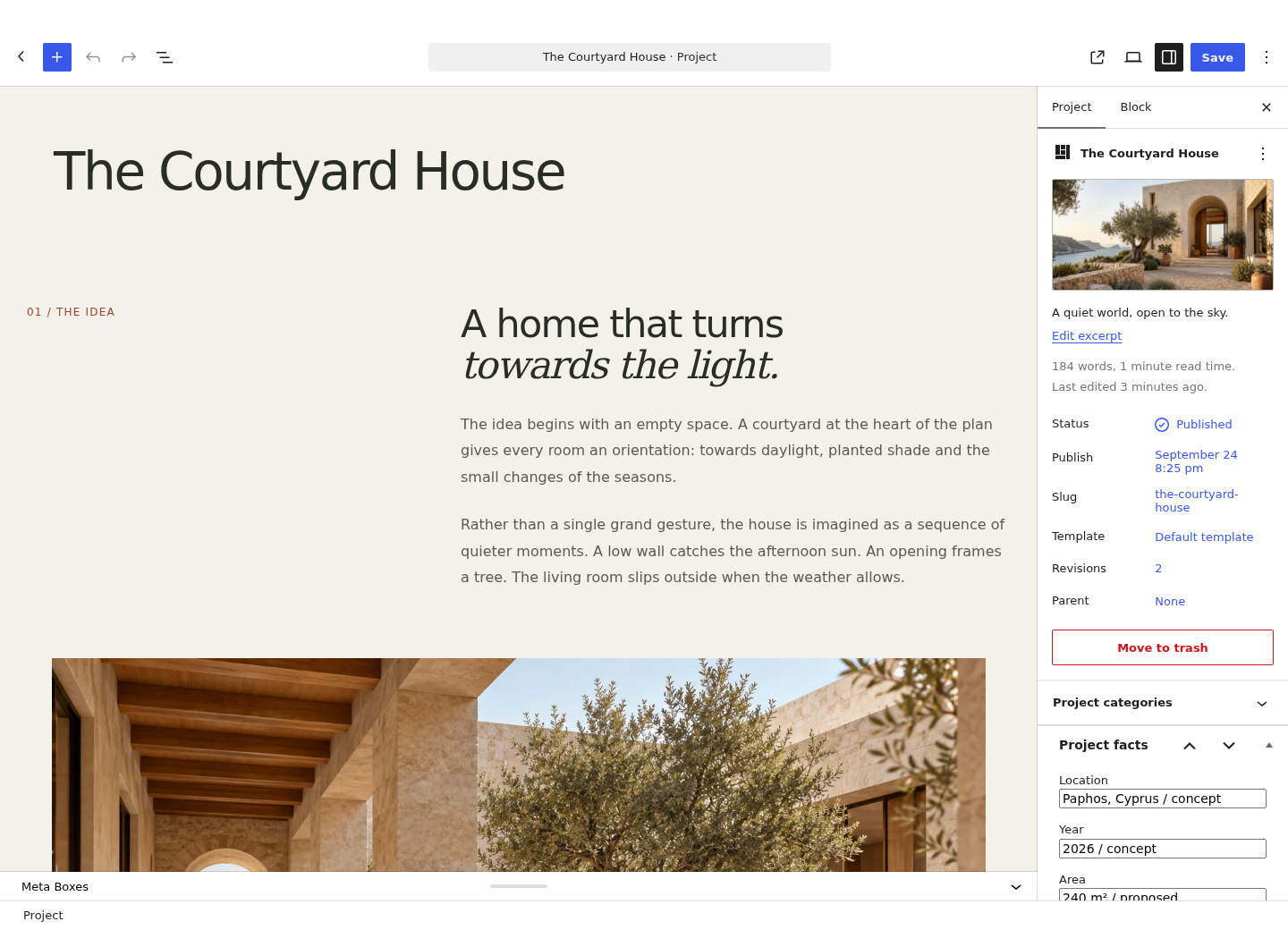
Projects belong to Sovelta Core. Add a title, excerpt, featured image, project facts and a narrative using normal WordPress blocks. Use captions and meaningful image descriptions.
The dynamic project listing reads project records, so title and image changes appear wherever that listing is used. Static image/text blocks remain individually editable and do not synchronize automatically.
Edit projects with ordinary WordPress blocks. Use Project facts for location, year, area and materials. Select the image for full size. Captured on version 1.2.0.
Prepare your contact form
Add the Sovelta Enquiry block to a page in the WordPress editor, or use the [forma_enquiry] shortcode. Open Sovelta → Enquiries → Form settings to choose the recipient, form wording, privacy page and retention settings.
In guided setup: the labelled test checks that the form saves an enquiry; it deliberately sends no email. To verify notification delivery on your own website, separately submit an ordinary enquiry, find the stored record and check the configured email inbox. A stored enquiry remains available if its notification fails.
In an editing demo: submit sample details, then find the record in Enquiries. The demo does not send email. Do not wait for an inbox notification.
Organize enquiry follow-ups in Pro
Start in Sovelta → Enquiries. Read the message, then use the follow-up tools to assign an owner, a next action and a date.
Project stage describes the opportunity: for example, Reviewing, Proposal or Won.
Reply status records your correspondence: for example, Reviewed or Replied.
Changing a stage or reply status does not send an email. Reply using your usual email tool, then update the record. Use the calendar and saved views to find work that needs attention.
Keep notes relevant to the enquiry. Export files contain private information; store them appropriately. Reminder email and external connections are optional and off until configured on your own site.
PRO / CLIENT DOCUMENTS
Choose a project collection or client presentation
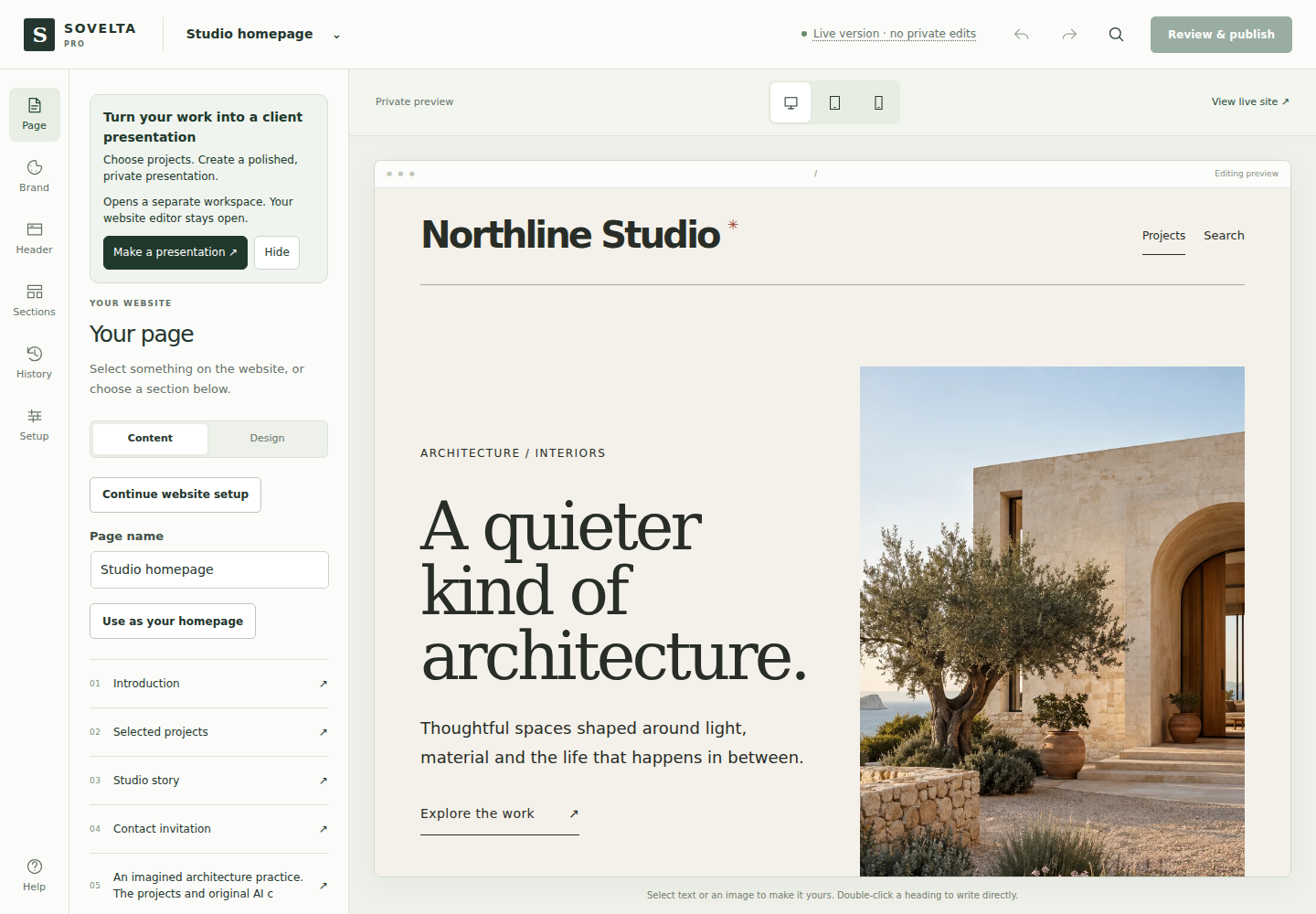
In the Pro editor: choose Make a presentation, select published projects and review the access guidance before creating your link. The result opens in a new tab while your editor stays in place. You can hide the suggestion and reopen it from Help.
Private editor drafts are not included. Publish the project first if you want its latest edits in the presentation. Creating a presentation sends no email.
A project collection is a normal WordPress page containing selected work. It starts as a draft; publishing it makes it public. Use it for an open portfolio link.
A client presentation copies selected project text, facts and images. Later changes to the original projects do not update this copy. On your own site, anyone with its private link can view it until expiry or revocation. Recipients can keep files they download.
Private presentation files need protected storage outside the public website. Ordinary Media Library uploads are public and are not a place for confidential documents.
In an editing demo: the presentation opens only in the browser session that created it. You can try its appearance and controls, but cannot send a working demo link to a client.
Make the document fit the conversation
Choose a restrained document layout, prepare its cover, arrange the project order and write summaries specifically for this presentation. Review the actual document preview before creating its protected snapshot. Presentation summaries do not overwrite the public project stories.
Readiness checks explain whether your host has suitable protected storage. If it is unavailable, copy the host-support request, have the host configure it, then choose Check again. The feature does not substitute public uploads for protected storage.
Print or save as PDF opens your browser’s printing controls. Choose the PDF destination if your browser provides it, inspect the pages and then save. This is browser printing, not a separate server PDF service. Browser settings affect the final output.
What works differently in the demo?
Your private practice website lasts 30 minutes. Ending it or letting it expire deletes its edits.
No email is sent and external connections are disabled. Test enquiries with fictional details and check the stored records.
Use the bundled fonts. Custom font uploads are unavailable in the hosted trial.
Presentation links work only in the browser session that created them.
Server, plugin and account management are restricted. Use the design and content tools provided.
Ready to start your own website?
Install the Free theme and Core on your own WordPress website. These downloads start a separate installation. To keep selected work, export each edited page and your appearance file before the demo ends. Import and review them on your own installation, then upload your media and replace temporary links; a full demo transfer is not included. Pro adds optional tools and is not required to keep using Free.
WordPress Tools provides personal-data export and erasure. Sovelta extends those facilities for enquiry fields and Pro metadata. Review retention and your separate email provider’s behavior.
A default policy is a starting point for your own decisions. Restrict staff access to the capabilities their job needs. Deactivation preserves records; deliberate erasure or removal is a separate action.
Update and recover
Moving from FORMA: use the supplied migration instructions and retain a complete backup. Do not uninstall the earlier components or run both suites together. The older hosted demo is a separate practice environment. Read the full FORMA → Sovelta migration guide.
Back up the database and files, then test the release on a staging copy. For an existing installation, update Sovelta Core 1.10.2 first, then Sovelta 1.10.2, then optional Sovelta Pro 1.10.2. This keeps earlier private design drafts available throughout the update. Keep custom PHP or template changes in a child theme and retain a verified backup.
Free theme and Core
For an existing Sovelta installation, download the individual current ZIPs and replace the theme and plugin through WordPress. Free does not install premium packages. Use the migration guidance above for earlier FORMA installations. A WordPress.org directory listing has not been announced.
Optional Pro dashboard updates
If you have a private access key, open Sovelta → Settings & help → Pro updates. Read the connection explanation, enter the key for your site and explicitly enable the connection. The consent checkbox starts unticked.
The connection sends your private key in the authorization header, your WordPress site URL, and installed Pro, WordPress and PHP versions to https://www.themes.shop/forma-updates/v1/check to check update access and compatibility. Authorized downloads use the same key and site. Enquiries, page content and email addresses are not sent.
Successful checks are cached for 12 hours; failed checks wait 15 minutes before retrying. Choose Disconnect to remove the local key and cached result and stop future update requests. Access can also be revoked by the owner of the update service.
The installed Pro features work without a key or after update access expires. Manual ZIP updates remain available. Connecting does not switch on WordPress automatic installation; that remains your choice.
Use your verified backup to restore the previous working site. Reproduce plugin conflicts on staging and record the versions and steps before seeking help. Never post an access key or customer enquiry publicly.
Troubleshoot common problems
Missing projects: confirm Core is active and projects are published. Wrong homepage: check Settings → Reading. Old design after an update: clear your site/browser cache. Failed mail: verify recipient and your WordPress delivery service.
A form on a heavily cached page may need cache exclusions or a shorter cache lifetime for security tokens. Test your particular caching stack. Never send passwords, license secrets or customer enquiries in a public support post.
Find the right tool
Edit website: page content, logo, colors, typography, sections, header and footer. Both editions include a complete starter; Pro adds sector starters, finer brand controls and custom header/footer assignments.
Projects: your project stories, facts and images. Use Social images to make a downloadable project card.
Enquiries: read messages and configure your contact form. Pro adds follow-ups, calendar and reports.
Client presentations (Pro): make a public project collection or a private copy for a client.
Settings & help: setup tools, Check before publishing and help for maintaining your website.
Include your Sovelta, WordPress and PHP versions, a short description, expected behavior and reproducible steps. Use sample data and remove personal details.
$129 USD/year before applicable taxes includes 12 months of Pro updates and product support for one website. Purchasing is not open yet.
Product support covers Sovelta installation, configuration and investigating reproducible product bugs. Custom design, hosting or server administration, third-party development and ongoing content entry are outside that scope. No guaranteed response deadline is offered.
Preview versions. Temporary editing demos and current Free downloads use Sovelta 1.10.2. The read-only example websites remain historical FORMA 1.7.0 previews. Screenshots, recordings and the static design comparison keep their own version labels.